Phone Wallpaper Size and Cropping: Get a Better Fit
Understand wallpaper dimensions, aspect ratio and crop before downloading. Learn why subjects get cut off and how to leave room for your phone clock and widgets.
There is no single wallpaper size that fits every phone perfectly. Pixel dimensions tell you how much image detail you have. Aspect ratio tells you its shape. Your device then decides how that shape fills the screen.
A larger image can still crop badly if its composition is too wide or its subject sits close to an edge.
Start with the shape of your screen
Use a portrait composition for a phone and a landscape composition for a laptop or desktop. Check your device’s display specifications if you need an exact pixel target.
Turin’s current Phone creator exports 1170 × 2532 images. Desktop exports are 2532 × 1170, and Square creates a square composition. These are output formats, not a promise of a native pixel match for every device. Desktop output is not 4K.
The public collection includes artworks with different original dimensions. Download the original rather than enlarging a gallery preview or taking a screenshot.
Why a wallpaper looks zoomed in
When the image and screen have different proportions, filling the screen requires part of the image to sit outside the visible area. An illustration can lose a person’s head or the ends of a shape even if its resolution is high.
Try a different position in the device’s wallpaper picker. If the subject still feels cramped, choose a composition with more space around it or generate a version with a smaller focal subject.
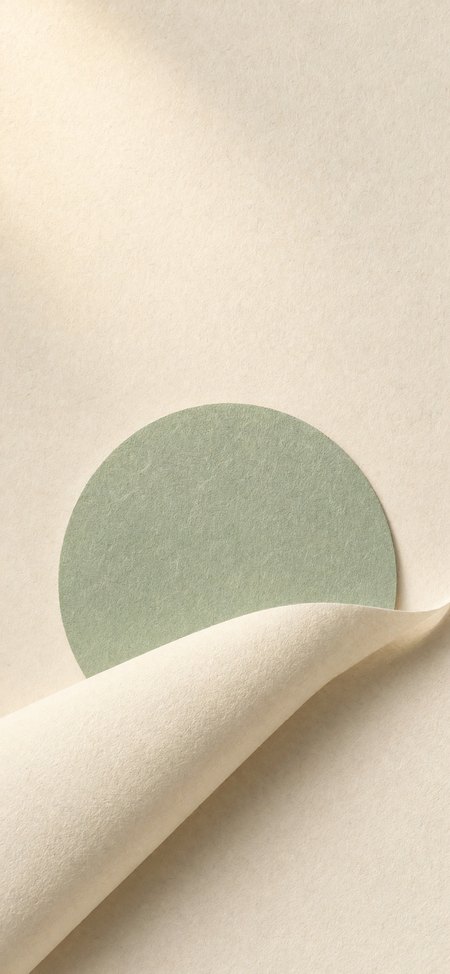
Jade paper orbit keeps a simple form away from the edges. Its empty space gives you more freedom to position the image.
Leave room for the interface
Keep important faces and details out of the clock area. Place the main subject around the middle or lower half, and avoid putting essential details against the extreme sides.
Turin’s Preview on phone adds a sample clock as a visual overlay. It starts awake, and you can switch back to clean artwork. The overlay does not appear in your download. Your own device’s clock, widgets and crop can differ.
Fix the composition in the prompt
Instead of asking only for a higher resolution, try:
Keep the same scene, make the main subject smaller and move it into the lower half. Add more quiet sky above and more space around the sides. No text or drawn clock.
A reference image helps preserve the idea while you change its framing. The AI wallpaper guide explains that workflow.
On iPhone, use Apple’s wallpaper controls to adjust the saved image. If the file is missing from Photos, follow the iPhone saving guide. For a wide screen, see setting a wallpaper on Mac or Windows.
Ready to adjust the framing? Open the wallpaper studio and create a composition around your screen.