How to Save a Wallpaper to Photos and Set It on iPhone
Download a Turin wallpaper to Photos, find an image that went to Files, and set a clean Lock Screen or Home Screen background on your iPhone.
If a downloaded wallpaper is missing from the iPhone wallpaper picker, first check where it was saved. A browser download can land in Files, while the wallpaper picker uses your photos.
Turin offers an image-sharing flow on compatible browsers so you can choose where the original goes.
Save an image from Turin
- Open a wallpaper preview in the collection.
- If you see Save image to Photos, tap it to prepare the original file.
- When the button changes to Open save options, tap again. The second tap opens the device’s share sheet.
- Choose Save Image if your share sheet offers it, then check Photos.
The site passes an actual image file to the share sheet. You still choose the destination in the device’s own controls. Available actions depend on your browser and iOS version.
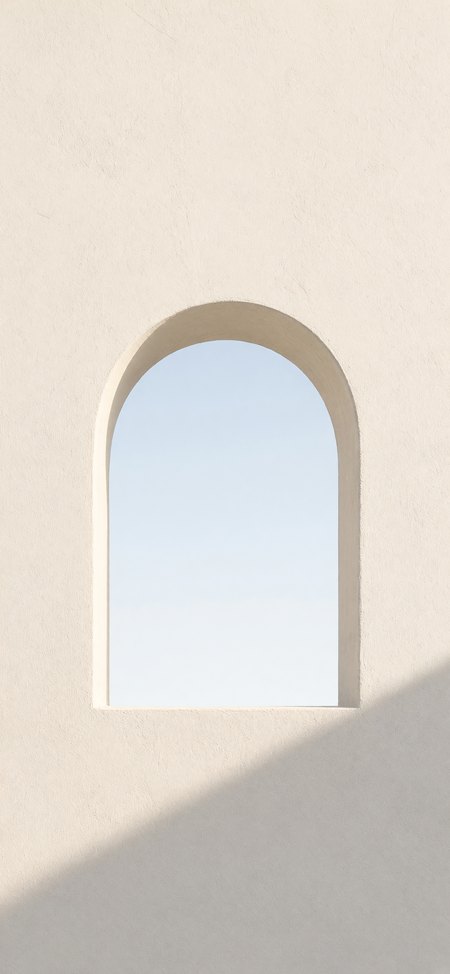
Ivory window has plenty of space above its subject, which makes it a useful starting point for testing a Lock Screen crop.
If the wallpaper went to Files
Find the downloaded JPG in Files and open it. Use Share and look for Save Image. If that action is unavailable, use the original-image link offered by Turin’s fallback flow and check Safari’s image-saving options.
Avoid taking a screenshot of the gallery card. A screenshot can include buttons, reduce image detail and bake the preview crop into your file. Downloading or sharing the original keeps the artwork separate from the website interface.
Set the image as your wallpaper
Apple’s iPhone wallpaper instructions describe the following route:
- Open Settings, then Wallpaper.
- Choose Add New Wallpaper and select Photos.
- Pick the saved artwork and adjust its position.
- Tap Add, then choose a wallpaper pair or customize the Home Screen separately.
Look at the clock and widgets while adjusting the crop. A subject that looks centered in Photos may sit too high behind the time. You can use Turin’s optional Preview on phone as a visual check, but the final device preview is the one to judge.
Keep the artwork clean
The clock shown in Turin’s phone preview is an overlay. It is not part of the downloaded wallpaper. Public gallery wallpapers are still images; saving a JPG does not turn it into a Live Photo.
If the image is cropped too tightly, read how wallpaper sizing and cropping work. For something made around your own colors and subject, create a wallpaper.