Create and Set a Desktop Wallpaper on Mac or Windows
Make a landscape wallpaper for your desktop, download the original and set it on Mac or Windows. Learn how to avoid awkward crops and stretched artwork.
A phone wallpaper and a desktop wallpaper often need different compositions. A portrait image may lose most of its scene when stretched across a wide display. Start with a landscape image, then leave space where you keep your desktop icons.
Turin’s wallpaper studio includes a Desktop format, so you can create a wide composition directly in the browser.
Create a landscape version
Open the wallpaper studio, choose Desktop and describe the scene you want. Specify where the quiet area should sit: for example, an open left side for icons and a small focal subject to the right.
Try:
A misty evergreen valley at dawn, layered cedar silhouettes, pale blue sky and a small warm light near the lower right. Wide landscape composition, a quiet left half for desktop icons, no lettering.
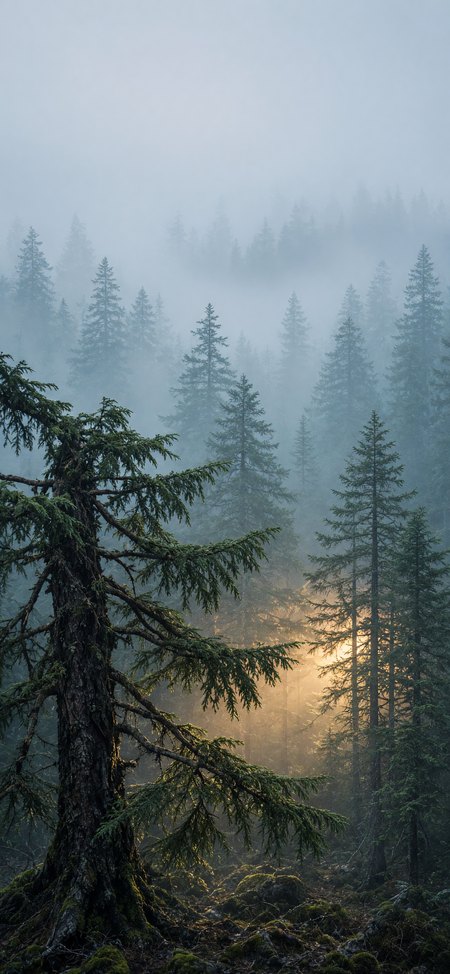
Cedar fog is a portrait example of this atmosphere. Use it as inspiration or an image reference, then create a separate Desktop composition for a wide screen.
Current Desktop creations export at 2532 × 1170. This is a wide image, but it is not a 4K export or an exact match for every display. Check the result on your monitor before making further refinements. A downloaded wallpaper does not automatically change your computer settings.
Set the image on a Mac
Save the finished file, then open System Settings and choose Wallpaper. Add your image using the available photo or file controls and select it as your background.
Apple documents the available controls in its Mac wallpaper guide. Labels can differ between macOS versions.
Set the image on Windows
Open Settings, then Personalization and Background. Choose Picture and browse to your saved image.
Try Fill for a background that covers the display, or Fit to preserve the complete picture with space around it when the proportions differ. Stretch can distort the artwork. Microsoft’s desktop background guide explains these options.
Check the finished desktop
Look at the wallpaper with your normal icons, taskbar or Dock visible. A composition that looks impressive in an empty preview can feel busy once your working environment is back on screen.
If you use several monitors, check each display separately. One wide image is not automatically a good fit for every monitor arrangement. Start with a simple single-screen composition before planning a multi-display background.
For more control over framing, read wallpaper sizing and cropping. When you are ready, create your desktop wallpaper.